Skip to content

On Microsoft Word Styles: How to Generate a Table of Contents

This week we’ve been talking about styles in Microsoft Word, and I’ve been promising for two days that setting up your styles would pay off when you got to make a Table of Contents.

I won’t make you wait any longer. That wouldn’t be fair. Also…well, this is going to be a little involved, and I’m only allowed to write 600-800 words, so we’d better dive right in! Let’s make a TOC.

Cheating Creating a Table of Contents

As I said yesterday, to get all the benefits of Word’s automation, you’ve got to already have a document filled with hierarchy styles. Lucky for us, I do — the same one I’ve been working with all week.

There’s still some prep work to do, though (there always is). If you’ll bear with me, I’ll go through all the necessary steps.

First, open the styled document, and go to the spot you’d like to add a Table of Contents. In my case, I want to put it right after the document title, but before the Prologue, so I added an extra line.

Second, you’ve got to set up a special Table of Contents heading style that looks just like Heading 3, but isn’t. (That’s because you don’t want “Table of Contents……1” to be the first entry in your Table of Contents.)

Third, insert a field. It depends (again) which version of Word you’re using, but you either go through the menus Insert | Field or switch to the Insert ribbon and click Quick Parts | Field. The Insert Field dialog should appear.

Fourth — and this is where it starts to get complicated, so stick with me —  scroll through the list of field names on the left, find “TOC” (for “Table of Contents”), click it to select it, and then click OK.

Try it Out (Technical Writing Exercise)

You might have to read through those instructions a time or two to fully grasp all the nuances. Once you’re ready, though, give it a try. Let me know if you have any problems.

On Microsoft Word Styles: Using and Customizing Paragraph Styles

Yesterday I told the story of a time I demonstrated the raw, unrestrained power of paragraph styles in Microsoft Word.  In case you don’t want to go back and read that, it amounted to a gasp and what was probably a sarcastic comment.

Even so, paragraph styles are quite cool.

Before you can see their powerful effects, though, you’ve got to have them all in place. And to do that, you really need to learn how to use them.

The good news is that it’s essentially the same thing we’ve been over with HTML styles in WordPress and Google Docs. The biggest difference is a slightly different menu (and a much friendlier editor).

Which Styles Work Best?

Now, as we’ve discussed for each of the last two weeks, it’s important to know that you can create totally custom paragraph styles in Word and get some cool effects. You could easily have a “novel body text” style, and a “novel chapter title,” and maybe “poem body” or “business letter salutation.”

I don’t recommend it. Just as I’ve been suggesting with the other programs, your best move is to stick with the standard styles, and customize them on a per-document-type basis.

How do you do that? In the advanced course, the answer is “with templates.” I’ve talked about those before, but Word will allow you to tell a document what template it should be using, and as soon as you change a document’s template from “Normal.dot” to “Novel-for-Submission.dot,” all of the paragraph styles’ formatting should update (without you manually changing the appearance of anything).

I don’t have enough time to teach you how to build and manage templates in this week’s lesson, though, so for now we’ll settle for customizing styles on a per-document basis. Next time you work on a new novel you’ll have to go through these same steps again, but they’re really not that involved.

Working with Styles

The first thing you’ve got to do, of course, is have some styles. Everything I’m about to describe would work perfectly with a novel you’d written from scratch, or one you’d already formatted manually that you wanted to change, but I’m going to save us a step and use one we’ve already got ready.

Two steps forward and one step back? Not exactly.

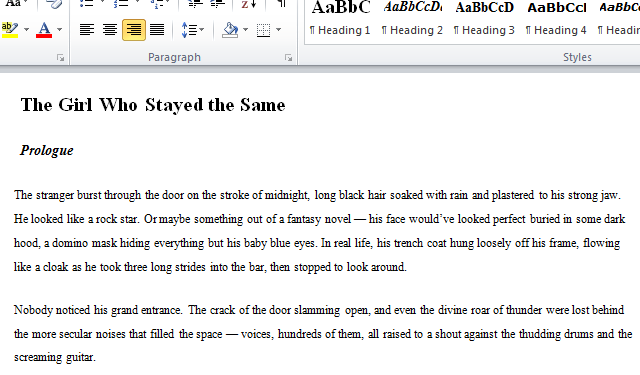
Remember that image from last week? It’s a novel that I wrote in Google Docs, using <p> for body text, <h3> for chapter titles, and <h1> for the novel title. If you’re working with an unstyled manuscript, your first step is to go through and get every paragraph styled.

And just like last week, that leaves us with a pretty ugly document, no matter what document type it is. I’ve never understood why the default style formatting had to be so unattractive.

Lucky for us, it’s also easy to fix. How depends on which version of Word you’re running, but if I remember right you either go to Format | Styles and Formatting (in Word 2003 and older), or from the Home ribbon click the little expansion arrow underneath the Styles portion.

In either case, that’ll present you with a list of the default paragraph styles, and any custom styles embedded in the open Word document. Find the entry for Heading 1, right-click it, and from the context menu choose Modify.

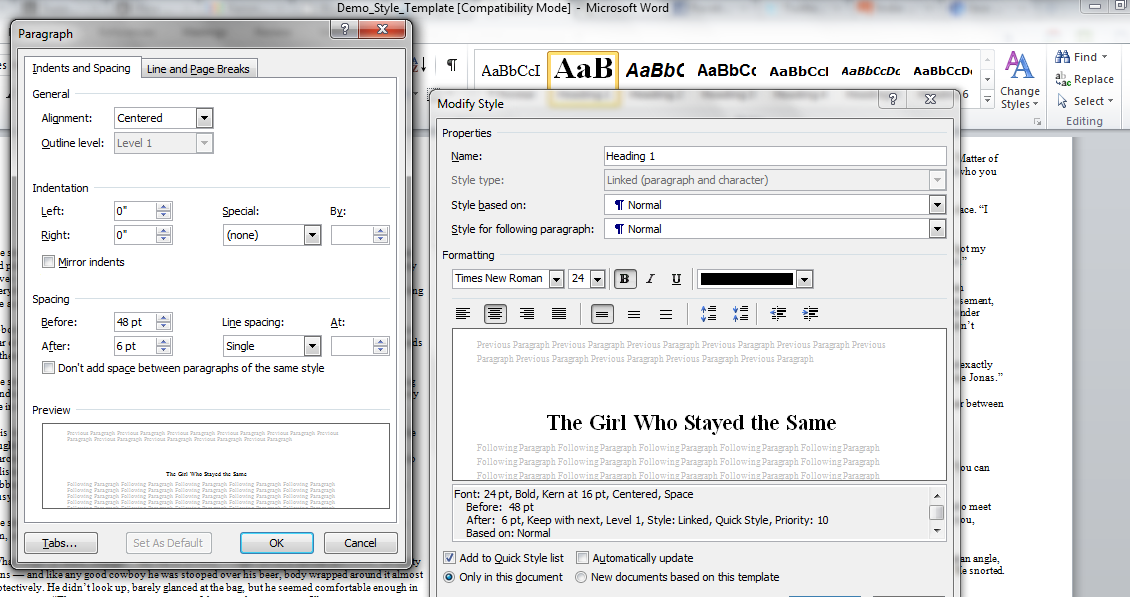
On the Paragraph Style dialog, you can change the way every paragraph with this style shows up in your document. Per our editor’s instructions last week, let’s change Heading 1 to be Times New Roman, but bump it up to 24-point font and center it.

You can do all of that using the standard editing toolbar right there on the style’s main page, as you can see in the image above, but there are a lot more options available. Let’s look at a couple of them that I’ve found handy.

In the bottom left corner of the dialog, click the Format dropdown, and choose Paragraph. That opens the Paragraph Formatting dialog, where you can change things like first-line indents, hanging indents, left and right margins, and whitespace above and below the paragraph.

Those are the ones we really want to change here. Find that section near the bottom of the dialog, and change it to “48 pt” above, and “6 pt” below. Then click OK.

If your title text doesn’t automatically update to match your changes, click anywhere in that line, and then click on Heading 1 in the styles list. That should change it.

Now let’s make our chapter titles extra fancy. Find Heading 3, right-click and choose Modify, update the font settings, and then click the Format dropdown, and choose Paragraph again. This time, click over to the second tab, Line and Page Breaks, and check the box labeled Page break before.

Click OK on everything to get back to your document (and reapply the style to one of your chapter titles if necessary). Now your chapters will always start at the top of a new page. Fancy, huh?

You can also update Normal (Word’s version of <p>) to make sure your body text has 0.5″ first-line indent, there’s no space above or below, and that it’s all double-spaced (all of that is on the Paragraph Formatting dialog).

Compare and contrast, with a little help from Photoshop

That’s a pretty significant visual change, and we didn’t alter a thing but the styles.

Putting Your Styles to Work

When that’s done, your document should be ready. Scroll through and make sure every paragraph has the proper style applied, then be sure to save it! You’d hate to lose all this work before you get to see the really fun stuff.

I’m saving the fun stuff, of course, for tomorrow. Come back, and I’ll show you how to generate smart text in Microsoft Word. You’ll be impressed.

On Microsoft Word Styles: “You Cheated!”

When I taught Technical Writing at my alma mater last fall, it was my first ever college course (as a teacher, of course). It was three credit hours and rated on the junior level — so, in other words, I jumped right into the deep end of the pool.

I wasn’t too worried about it, though. After all, I am a technical writer (and a really good one, at that). I’ve got eight years of diverse real-world experience, and teaching is in my blood. How hard could it be?

What tripped me up — and it astonishes me how often I have to repeat this sentence — was the math.

See, I was thinking, “A whole semester to teach Technical Writing. How am I going to fill all that time?” But a week before classes were supposed to start I finally sat down to come up with my detailed lesson plan, and I realized for the first time exactly what a 3-credit-hour course was.

3 hours a week, for sixteen weeks. Without even factoring in holidays and breaks, that gave me just 48 hours total to teach a bunch of college kids — most of them with no real background in writing — everything they needed to know about writing in the business world.

I gave myself a good half hour to panic, and then I opened my list of “topics that might make interesting lessons” (in Google Docs, of course), scrolled through the thirty or forty notes I’d scribbled in there, and then cut all but two of them.

  • Distinct Document Types
  • Writing with Styles

Forty-eight hours, I figured, would be just enough time to cover those two topics in sufficient detail, and nothing else on my list was nearly as important.

You’ve seen a lot of discussion around here already on the second bullet point, and I’m building up to the first one in a subtle, sneaky manner. At heart, though, it’s the same as my discussion of document templates. Knowing that, if you’ve been around here for long you can make a pretty educated guess what my class was like.

Really, the biggest difference was just that I could make them do the exercises. So by the midpoint of the semester, I’d made them go through the motions of setting up styles several times.

We’d built our own templates at least once a week, and customized styles for every single paragraph in the document. I’d mentioned some of the benefits obliquely from time to time, but I hadn’t really shown them the real why of styles yet.

This was a lesson I’d been planning from the first day, though. I opened a new document on the monitor at the front of the class, filled it with completely unformatted text I’d copied from several of their tutorials, and then scrolled through real quick and applied a bunch of styles while they watched.

That was impressive on its own, watching boring Notepad-type text become a real book (visually, anyway) just like that. By the time I was done I had nine chapters, complete with titles, section headings, illustrations and captions…the works.

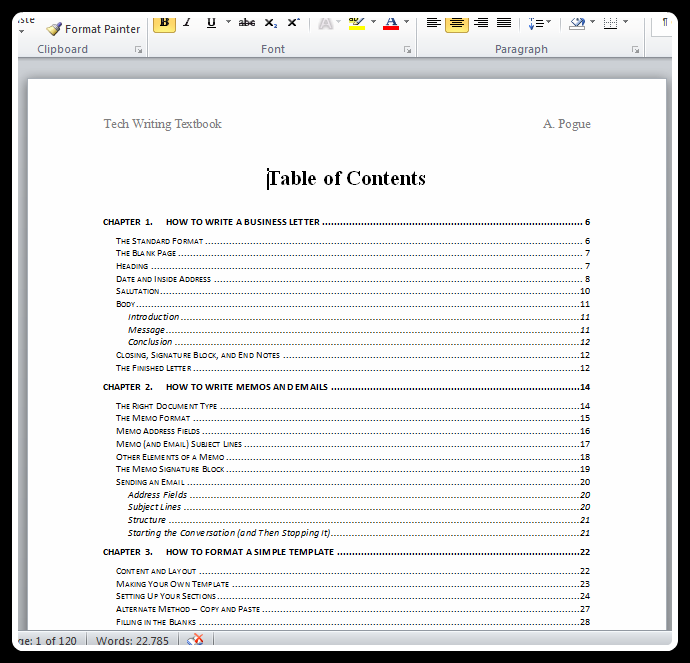
Then I skipped to the topic of the document, added a blank line, and clicked Insert | Field | TOC. My Table of Contents sprang onto the page fully-formed (and, if I do say so myself, quite beautiful).

They gave a pretty satisfying gasp of surprise. Someone sitting on the back row shouted, “You cheated!”

“And that,” I said with debonair aplomb, “is why you need to learn styles.”

Using and Customizing Styles in MS Word

I started this series two weeks ago with the promise that applying standard styles adds meaning, not just formatting, and that having access to that meaning gives you more options as a writer. When it comes to document design, there is real power in paragraph styles.

This week we’re going to see some of that power in effect. Come back tomorrow for a quick guide to working with styles in Microsoft Word, and then Tuesday I’ll show you how to make some magical TOCs of your own.

On Writing in Drafts: How to Finish Writing a Novel

This week I’ve been talking about pounding the pavement, and the psychology of storytelling, and recognizing the potential in a story even when it looks totally and helplessly broken.

I’ve said since the very start that writing is a mental game, and it’s amazing how much of good writing really is psychological. So let’s employ a little bit of my uneducated, grossly-misrepresented understanding of cognitive behavioral therapy, and put our neuroses to work for us.

Behavioral Patterns

People are creatures of habit, and whenever we’re not paying close attention (which is to say, most of the time), we tend to run on a relatively elegant kind of autopilot. Things happen in our environment, and we respond automatically. It’s how we process the overwhelming amount of information around us, and how we handle the complex situations life puts us in.

Since these habits and patterns run so much of our lives, it’s easy to for them to begin changing the way we think, the way we approach our world. One of the first steps to fixing a broken worldview is often fixing a destructive pattern — and the easiest way to do that is identifying the trigger and consciously substituting a healthier pattern in its place.

And what does that have to do with writing? It should be obvious. The biggest obstacle to good writing and the biggest contributor to good writing are both pretty straightforward behavioral patterns.

  • Distraction is a habit.
  • Daily writing is a habit.

When you sit down to start writing, which pattern is triggered? And which one would serve you best?

Daily Writing

You already know you should be writing every day. I don’t have to tell you that. But, then, I already knew I needed to be exercising every day, but it took a crisis, and a new understanding, to get me to actually follow through.

So today I want you to think through the biochemistry of distraction. Think through the process you go through, mentally, every time you sit down to write and don’t end up writing. Or, on a larger timeframe, when you start a story and don’t end up finishing it. Think about what that does to your self-image as a writer.

And don’t start beating yourself up over it. That doesn’t do you any good. Just think through the psychological poisons a single, discrete instance of distraction introduces into your writing process.

Have you got that? Is it clear and ugly in your mind? Good.

Now think about what one good writing session can do to that feeling. Maybe it’s exhausting. Maybe you’ve got to sweat and struggle just to put words down on paper, but when you sit down to write and you get something written, it obliterates (if only for a day) all the drudgery and doubt you suffer when you give in to distraction.

Achieving Long-term Progress with Short-term Goals (Creative Writing Exercise)

The lovely Kelley, writing at a coffee shopThat’s the biggest lesson I’ve learned in the last four months:

It doesn’t matter how important the goal is, or how much you want it — it’s almost impossible to find the dedication to really work hard for a payoff that’s months or years away. So don’t!

Write for today. Not just because you’ve given yourself a quota, but for a concrete, real reward. Take time every now and then to go back through that process above, reminding yourself just how much you gain, right now, from sitting down for one hour and actually writing.

If you can live in that immediate reward, you’ll be amazed at the changes you see, in yourself, and in your writing.

And, y’know, that’s actually the secret to finishing a novel. That’s the secret to fixing a bad rough draft, and to overcoming writer’s block, and to improving dialog, and to cleaning up your plot arcs. When it comes right down to it, the secret to becoming a better writer is writing every day for years.

And the only way to do that is to write every day today.

So that’s your writing exercise for this week. Start the habit of daily writing, by writing today. Let me know how it goes.

Photo credit Julie V. Photography.

On Writing in Drafts: Rough Drafts and Good Foundations

Yesterday I talked a little bit about my biggest work-in-progress (me), and the story I told by way of illustration is one I could bend to a dozen different applications. I told you yesterday that I’d chosen to make it a discussion of writing in drafts, but what I’m really talking about is writing as a process.

It’s simple to think of writing as a thing you just do, at any given moment, but good writing has a lot of moving parts. It’s not a one-time event, even for very small documents, but a gradual development. It’s not a single ability, but a worldview and a set of habits and a series of expectations and a certain type of understanding.

Narrative Therapy

It’s so distinct a method of understanding reality that there’s a branch of psychology dedicated to understanding life in the terms of storytelling, so you can take control. The essential principle (and the one I’ve put into practice) is that you are responsible for writing the story of your life, starting with today as page one.

Every story starts with baggage. Every novel opens with a first sentence already sagging under the weight of hundreds of pages worth of backstory, even if you can’t see any of it. The story isn’t really the setting or the history or the cultural context, though. The story is what the protagonists do, starting on page one.

And narrative therapists will tell you that’s your job when you wake up every day. No matter where you are, or what you’ve got to deal with (good or bad), your job is to take your story where you want it from here.

That fascinates me — the way an appreciation for storytelling has shaped psychology — and I’m sure I’ll talk about it in more detail another time. But today I want to talk about your writing process, about accomplishing your writing goals, and so we’re going to bring the parallel full circle (shattering all of trigonometry with a single casual metaphor).

Prewriting

Of course, therapy exists to fix problems. If your writing already works, you don’t need an adjustment. That applies whether we’re talking about your general writing process on a grand scale, or just individual projects.

We’ve got a system that’s supposed to produce healthy, well-adjusted rough drafts. Maybe they’re not perfect, but they’re able to function according to a reasonable standard, and a little bit of focused improvement is all you’d need to really make them shine.

That system is called prewriting. It’s your opportunity to make sure your story has the best possible chances at turning out okay. The better you know your story — and I don’t just mean your story idea, but your character profiles, your deep setting, your themes, your conflict resolution cycle, your narrative voice, your overall story structure, all of it — but the better you know your story, the less work you’ll have to do during the writing and the rewriting stages to get it finished.

And there are some writing coaches who swear by detailed prewriting. It’s the main schtick there at StoryFix, which is a site rich with solid info. Larry would tell you that writing a story before it’s rigorously structured is the same thing as writing notes about your story. You won’t get started writing the actual story until you’ve got everything nailed down.

Working with What You’ve Got

That’s a lot of work, though, and frankly, it’s a luxury. Stories don’t have to come from that solid of a foundation to be viable. Good stories can start in a lot of different ways, with different writers, and each one can develop in its own path. That’s okay.

I understand a lot of writers want to be able to scribble down a perfect first draft and be done with it. It would be lovely. And, in the same way, as a parent I want to raise children who are perfectly healthy — physically, emotionally, and psychologically.

We’re all better off, though, if we accept the reality that life usually doesn’t turn out that way, and start learning how to deal with real life — baggage and all. Sometimes that means adopting an exercise regimen so you can handle the terrifying prospect of a dinner party, and sometimes it means learning to see the potential in an ugly rough draft, and picking up the habits needed to make it better.

That last is what we’ll talk about tomorrow. Come back, and I’ll tell you how to fix a broken draft, and finish writing a novel.

On Writing in Drafts: Starting with Purpose

I shared a story last week about my social anxiety totally overwhelming me in college, but in hindsight I can see its clear effects at least as far back as high school. Last year, though, I reached something of a crisis.

A year or two after I figured out what the problem was, I finally faced just how bad it had gotten, and how much it was interfering with my life. Then I went looking for help…and I found it at about arm’s length.

My dad is a certified cognitive-behavioral therapist who specializes in anxiety. That’s painful, isn’t it? Just knowing that resource was there all along….

And it’s not as though that was the first time we’d discussed it. He always told me the same thing, “You need to exercise, and if it gets really bad you should see a therapist.”

We went to Arkansas to visit them in February, though, and while we were there I started having a major attack. Dad took me out for a long drive, and we talked it through, and after I spent half an hour or so complaining he told me that what I really needed to do to was exercise.

I sighed. Of course I needed to exercise more (doesn’t everyone?), but the physical effects of the constant anxiety left me way too drained and distracted to stick to any kind of routine. I told him that, frustrated, and he nodded patiently…and then he explained why I needed to exercise.

It’s got to do with the biochemistry of anxiety. I’m not going to go into the details here — because I’d get them wrong — but he said that “drained and distracted” feeling is the result of some nasty chemicals anxiety puts in the bloodstream, and a good brisk walk should be enough to burn up the worst of them.

He prescribed an hour a day, and I promised myself I’d follow through (and didn’t really believe it), and then I headed back home without a ton of hope. In fact, I was heading back home to a really intimidating business meeting the following day, and on the drive back I could feel the anxiety attack starting.

So when I got home, miserable as I felt, I followed through on Dad’s suggestion. I went for a walk, and I made it an angry one. I stomped and thundered, constantly pressing faster and harder, and the whole time I imagined all the poisons that made me so miserable burning up in the heat of tired muscles and searing lungs.

And when I finished my walk, to my great surprise, I felt better — not just emotionally, but physically better. I was exhausted, and sore, but it was a natural tired sort of pain. The other, though — the nausea and the shortness of breath and the heartache — it was gone. Totally gone.

I sat on the couch for an hour doing nothing, and when the tiredness passed I felt totally normal. Two hours to recover from an anxiety attack that easily could have leveled me for a week. It was miraculous.

In the four months since that day, I’ve missed my workout four times. And every time I did, I missed it. It’s not something I do because I should, but because I understand, in an immediate kind of way, what it’s got to give me.

Rough Drafts and Good Foundations

I’ve got a habit of telling you a little story and then trying to make an application to writing, but this one’s kind of the opposite. It’s the writing metaphor that has helped me stick to my therapy.

It’s worked, too. I’m not perfect yet, but my anxiety is much better controlled than it has been in years. I sleep better, I concentrate better, I feel happier…and I’ve lost 44 pounds in the last four months.

And every step along the way, I’ve been writing. I’ve been changing my story, starting with that one major rewrite to my daily schedule. It’s the marble statue again. I did a pretty solid job outlining my life and filling in all the details until I knew the full shape of it. I’m a grown-up now.

But I’m not done. This is just the beginning. I’m going through a pretty intensive revision right now, but I’m sure I’ll keep on polishing for the rest of my life. That’s what we’re going to talk about this week: rough drafts and good foundations tomorrow, and sticking to it and getting a novel written on Saturday.

What I Learned about Writing this Week…from the Kitten.

Greetings, dearest inklings. It’s lovely to see you again. Or be read by you again, if you’ll pardon the passive. Or something like that. At any rate, it’s good to be back WILAWriTWe-ing again.

“Oh?” some of you might be asking. “Back? Again?” In other words, though I know for certain that some of you missed me, I’m sure there are those among you who didn’t notice my glaring lack of article for Unstressed Syllables last week.

So, to those who didn’t notice that you missed anything: You didn’t miss anything, because there was nothing to miss. And to those who spent last Wednesday morning weeping into your coffee whilst desperately scouring the blog, hoping against hope that I merely made an error in timestamping and you might locate the day’s WILAWriTWe somewhere in the vast nether regions of Unstresssed Syllables’ archives…to you, I can only say I’m sorry — and I dedicate the following story to you.

The Unexpected Guest

Just under two weeks ago, four days before I was supposed to post the WILAWriTWe that ended up getting neither written nor posted, I found a kitten abandoned in our parking lot. I cannot but believe this small creature was meant to enter my life and the lives of my skeptical husband and adult cat, for I heard the little thing’s cries from inside my apartment, over the blaring of the movie The Blind Side, and in spite of the hissing of the air conditioner. And once outside, pattering around the apartment complex barefoot, I simply couldn’t resist rescuing the little ball of fluff that came bounding out from underneath a car as I approached, bleating its little kitten heart out in gratitude at finding a human savior.

Much to Ed’s chagrin and Pippin’s dismay, I brought the kitten inside and installed her in our bathroom. Flea-bitten and malnourished and almost certainly wormy, she attacked the goat’s milk I gave her as though she’d never seen food before. When I softened up some of Pippin’s dry food and carried it into the bathroom, sharp and demanding meows met me at the door. Even with food in her belly, she wouldn’t stop crying, so I wrapped her in a blanket and held her while the put-upon husband and I finished the movie. Pippin watched with pupils the size and temperature of cranked-up burners on a stovetop.

The next few days were a whirlwind of kitten food purchases, flea treatments, and frustrating discussions regarding the future fate of our furry foundling. (And yes, I had oodles of fun writing the preceding sentence.) Technically, keeping her was not an option, because our apartment complex doesn’t allow more than one pet per apartment. Not to mention the fact that the husband and the dominant feline were not thrilled about a new addition, period. Things finally came to a head when I said that our bathroom was too small — and a shelter would just put her in a cage.

Ed’s response to that: “Well…I guess she needs a name, then.”

Merry and Pippin

We already had a female cat bearing a male hobbit’s name — so “Merry” seemed the obvious choice. Though nothing was official yet, the back of my mind was already carrying on conversations with non-LotR fans, in which I patiently explained that our younger cat was not, in fact, named after the mother of Jesus. But before we sat down to discuss names and decide on one, I noticed that the as-yet-unnamed fluffball was a bit less perky than she’d been the day before. This was Tuesday afternoon. By Tuesday night, Quintessential Rambunctious Kitten had morphed into Lethargic Listless Kitten — who refused to eat or drink.

Wednesday morning found me at the vet with QRK-turned-LLK, listing her woes to a white-coated young man who listened and nodded and then took her off to poke and prod and give provender in the form of subcutaneous fluids. With orders to watch her and to pay attention to her stool, I took her home again and fretted the rest of the day.

Things started looking up when, about ten hours later, the stool-watching turned into complete gross-out. I promise, the only detail you need to know is that my prediction of worminess proved accurate. Before I went to bed, soon-to-be-Merry lived up to her unofficial name by eatin’ some vittles and batting her toy mouse around the bathroom floor.

As of today, we have an adult cat named Pippin, who inhabits all rooms of the apartment with the exception of the bathroom, and a kitten named Merry, who lives in the bathroom and comes out twice a day for supervised visits with the big kitty. Cat-and-kitten integration is a slow process, so our living situation will likely continue in a state of slight chaos for a while.

But, as I’ve been assured time and again by my friends who have children, slight to moderate to total chaos is what happens when you bring a baby into the family. Floors get messy, shower curtains get shredded, and older siblings harbor jealousy and resentment. Thankfully, kittens grow up a lot faster than human babies, and adult cats have shorter memories than five-year-olds.

Excuse Me?

All of that, of course, on top of all the other ins-and-outs and ups-and-downs of daily life, is the reason I forgot what day it was and failed to post, yea verily failed to write, last week’s WILAWriTWe. “That’s a nice excuse,” thinks you, “but an excuse is all it is. What’s that got to do with writing, eh?”

Dear, still-faithful-I-hope readers, of course I wouldn’t offer you a tall tale without drawing some writerly conclusion from it. So go grab yourself another cup of coffee, make sure the boss isn’t catching you reading for fun, and let’s wrap this thing up with some tidy real-writing-life application.

Protect, Nurture, and Socialize

Your story, dear reader, is a kitten. And your job is to grow it into an adult cat. I expect some of you probably don’t care for cats much, so this metaphor might turn you off — but bear with me. It’ll all work out, I promise.

In its early stages — say, the first couple drafts — your story is rambunctious. You try to impose limits on it, but it’s mostly out of your control, skittering hither and yon and having the most glorious time making a complete nuisance of itself.

It demands your attention — especially when you try to focus on other things — and if you don’t keep a watchful eye on it, it gets itself into predicaments it can’t get out of. Its appetite is insatiable; your job is to feed it as much as it wants.

You know you need to let it out, let it stretch its legs, let it play — but at the same time, you have to protect it from The Dangers Of Outside. You are its guardian and its advocate, and you must commit yourself to diligence and vigilance. (Ha! Say those two words ten times fast!)

Sometimes, your new story gets a little sick. Sometimes, your new story gets a lot sick. You’ve dealt with stories before; you generally know what to do to get them back on track. But sometimes, what you know doesn’t help — and then it’s time to wrap that story up so it stays warm and cozy, then take it to someone who can look at it for you.

Sometimes, that someone has to take your story away, so as to give it the painful yet ultimately beneficial treatment it needs…without your nervous and unnerving interference. So just sit back, try not to fret, and trust that your beta reader knows what she’s doing.

She’ll bring your story back, give a few bits of advice, and send you home to spend more time with the little thing. Sometimes, you’ll have to bring it back for a second round of treatment. But I’d venture to say that most often, you’ll take it home and discover that after some unpleasant purging of unnecessary bits, your story is much improved and more than ready to come out and play again.

And what of the sibling rivalry? Your well-crafted stories look down from their lofty heights of final draft completion and say, “What is this nonsense? Who brought this youngster in? We cannot be expected to mingle with this.”

Oh, but yes — those elder siblings have experience, and it is their job to teach your little story what it needs to know. Your completed works know so many things the little one must learn: story structure (this home has order), interaction with readers (it’s not good to claw them), and the slow but exhilarating process of growing up (one little pawstep at a time). Your completed stories are the embodiment of lessons well learned — and lessons applied.

It’s your job to communicate that acquired wisdom to the new story, turning theory into practice. It’s the best way to prepare your story for socializing with the readers who come to call.

And that’s WILAWriTWe!

(Click the Amazon link, buy something within the same browser session, and I get a few pennies with which to purchase the increased amounts of catfood required by my household. Thanks!)

Photo credit Julie V. Photography.

On HTML Heading Styles: How to Export Your Google Docs Beautifully

Yesterday, you’ll recall, I talked about customizing the appearance of standard-styled text in Google Docs. If you follow me on Twitter, you might have caught some chatter after that post went out between me and a professional editor who took issue with some of the screenshots.

Before you rush to my defense, I should point out that her only goal was to make sure you, my readers, get sound advice. She mistook my technical instruction on how to adjust the way your text looks for style advice on what it should look like.

And she rightly pointed out that sending in a document that looks like the one in yesterday’s screenshots wouldn’t do you any favors with a big-name New York publishing house. If you’re trying to submit to the publisher she works for, for instance, it should all be Times New Roman (even the headings),  and 12 point, double-spaced, with no special characters.

Adjusting Your Local Styles

Now, personally I’m less and less of the opinion that writers should be jumping through some of those nonsense hoops for New York publishing houses, but I’ll wait until I’ve got some credentials behind me before I classify that as “advice.”

Her objection serves as an excellent illustration of the point of this series, though. Because I never suggested you change the text in your book to be Century Schoolbook 9-point font, or change the text of your chapter headings to be Arial. I suggested you make chapter headings <H3> and body text <p>, and showed you how to change the styles.

Once you’ve done that, if you find out the formatting you applied was wrong, it’s the easiest thing in the world to go into the CSS and copy the “font-family” line from your <p> tag down into the headings.

You can easily change style definitions for different submission guidelines

I could turn this into another 1,000-word tutorial if I went into all the details, but with a little effort (maybe five minutes, counting Google searches) I was able to match all of her requirements. I went one better and added a styled contact info block at the top and a header with [author’s last name] / [first significant word in title].

All dressed up and ready to go (click to enlarge)

So there you go, a beautifully styled document according to one publisher’s very specific standards. I’ve heard from others that it should always be a monospace font, because that’s easier for typesetters to evaluate. No problem! Just change “font-family” from Times New Roman to Courier, and your whole book is ready for that publisher.

Some editors never want to see italics or bold. Instead it should be underlined and all-caps (respectively). Easy, easy! Add two new style definitions to your CSS:

em {
font-style: normal;
text-decoration: underline;
}

strong {
font-weight: normal;
text-transform: capitalize;
}

That’s it. You don’t change a word of your document, you don’t scroll anywhere or search for anything. You just open the CSS, add a few lines, and your document is ready to print and send off.

Printing It Out

Of course, the whole conversation is moot, because we’ve been talking about a book written in Google Docs this whole time. Right? And remember that program I mentioned at the start of this series — the one I had to write to take books out of Google Docs and put them in Word so I could style them for publishers’ submission guidelines?

Turns out that original program is entirely obsolete. (Google will do that to you if you’re not careful.) In the time since I wrote my original program, they’ve added a convenient option on the File menu: File | Download as | Word. That’s all there is to it. They’ve got an option for OpenOffice, too, to make your export as clean as possible.

And how clean is that? Let me show you. This is my completely reformatted and styled document that I showed you earlier, once it’s downloaded and opened in Word:

Two steps forward and one step back? Not exactly.

With some slight differences in font and format, that looks an awful lot like one of the screenshots we saw yesterday — the second out of six, in fact.

So is it a failure? Not at all. Because we can do precisely the same thing in Word that we did in Google Docs, and Word has some dialog boxes that actually make it considerably easier. Once you know what you’re doing, the whole process from start to finish shouldn’t take you more than five minutes.

That’s next week’s lesson, though. Come back on Sunday, and I’ll tell you how to make Word make your words look right.

On HTML Heading Styles: How to Customize Paragraph Styles in Google Docs

Yesterday I told you about BookMaker and the publishing model I built on Google Docs heading styles. Maybe my account made it all feel a little grandiose (and I haven’t even gotten started telling you about my long-term plans), but really what I described is the whole point of templates and standard styles: generalization. If you’re doing it right, you’re making something that’s easy to repeat, and to share.

Last week I told you how to use the standard HTML heading styles in WordPress, and if you were paying attention you probably noticed in yesterday’s story that I used the same heading hierarchy I recommended for your blog posts in my new BookMaker best practices.

The problem with that advice is that it might not make your chapter headings look right when you log into Docs to work on your book. And looking right is what styles are for…right?

Right. But to make them really work, you have to learn how to modify styles — not format text on the page, but modify the standalone style descriptions. I’m going to show you how I did that for the Consortium Novel Template, and in the process I’ll teach you how to program CSS.

Programming CSS

Okay, the easiest way to customize styles in any authoring software I’ve ever used is to start with a new document you don’t care too much about messing up, and paste in a bunch of text that you know what it should look like. In this case, since I’m working on a novel, it’s pretty straightforward. The only really important pieces are the top 3 heading styles (down to chapter headings), and the body text.

So I started with a blank document in Google Docs and pasted in the unformatted text of one of my works-in-progress, The Girl Who Stayed the Same.

Paste some unformatted text into a new document

Then, of course, you’ve got to apply your styles. For reasons of SEO that I talked about last week, and reasons of portability that I’ll talk about tomorrow, I strongly recommend using (and customizing) the default styles, rather than just designing your own headings.

So the next step is to go through the document and apply all those styles and see what it looks like.

Apply default styles to the text and see how it looks

That’s already better, but that’s the “not right” I was talking about earlier. The H1 is way too big, and they’d probably both look a lot better centered.

That’s a matter of personal preference, of course, but that’s sort of my point. Your personal preference might not match mine, but it also might not match the one the IEEE picked for H1 (or would that be somebody like Mozilla or Microsoft?). Well…it doesn’t matter. CSS exists to let us fix that.

So the next step is to get started making changes. Open up the complicated CSS built-in integrated development environment by going to the menu and choosing Edit | Edit CSS. Try not to be intimidated by the dialog box that appears.

The "Edit CSS" dialog is just a big empty box. Helpful!

Well okay, maybe that wasn’t so bad after all. It’s just a blank page. It doesn’t really give you any hints where to get started, though, and that’s a little frustrating on its own. Luckily, I can help.

Programming CSS is as simple as providing the name of a style, then opening some curly brackets ( { and } ), and then using pre-defined attributes and values to tell the web browser how to draw each of those styles when they show up.

Does that sound complicated? It’s really not too bad, especially for what we’re doing. To get started, provide all the names of the styles you know you want to customize (including “p” for normal body text), and follow each one with a pair of curly brackets. It’s normal to add some empty lines between the brackets to fill in later, since CSS ignores the line breaks.

These are the default heading styles, waiting to be formatted

Then it’s just a matter of deciding what you want your named styles to look like. Do you want all your headers to be bold? Then add a line that says, “font-weight: bold;” between the brackets for each of the heading styles. Do you want them to be centered? Add “text-align: center;” too. And if you want some whitespace between those densely-packed paragraphs, just put “margin-bottom: 1em;” in the p brackets.

Bold and center your headings, and add some whitespace between paragraphs

I can hear you now. “Hey, wow, it’s magic, but how do you expect me to memorize all those keywords?” (Actually, no, my readers are smarter than that. I was imagining Keanu Reeves there.)

But of course you don’t need to memorize anything. The ultimate guide to CSS programming (along with every other kind of programming, and nearly everything in the universe) is a simple mouseclick away. Just go here, and you’ll become an instant master.

It really is as easy as that. You could easily find all the style methods I listed above with a bunch of quick searches based on what you’re trying to do:

That’s actually one I wanted for my template, because I know some writers would prefer to be able to work with the old-fashioned familiar. Turns out, it’s as easy as any of the rest. One line between your p brackets:

text-indent: 1.5em;

It might also help to add “font-family: Times;” if you’re going for the genuine Microsoft Word look-and-feel. That’s easy enough to do, though, and just like that you’ve got a book.

And now it looks a lot more familiar.

Becoming a Publisher

Really, that should be enough to help you make Google Docs feel more like home while you’re learning to use the Heading styles, but it offers big benefits I’ve barely even touched on yet. Come back tomorrow and I’ll tell you how to take advantage of all this set-up work to export your Google Docs beautifully.

On HTML Heading Styles: A BookMaker Story

Once or twice now I’ve mentioned the program I wrote to grab my Google Docs novels and cram them into Word templates so I could pretty them up for submission. That was a fairly humble little Python script that I ran on my laptop maybe five or ten times.

When Courtney asked me to help her do the same thing for one of her books, I couldn’t get BookMaker to run on her Mac. It was disappointing, and I had a handful of issues with it that I didn’t know how to fix, so I mostly abandoned the project after that.

A few months later, though, my programming mentor Toby started talking with me about the nearly-universal ePub e-Book format, and I recognized a solution. An ePub is a zipped file packed with specially-formatted HTML files — in other words, it’s a lot like the novel templates I’d made for Word.

So I asked Toby if he’d be interested in checking out my source code for BookMaker and seeing if it was something he could adapt into an ePub builder. He was…and it wasn’t. So instead of adapting my program, he rebuilt it from the ground up.

It’s not like I was cut out of the loop, though. While he was coming up with classes and functions, I was designing best practices and figuring out a workflow.

That’s always the biggest challenge of any automation project: finding a reliable way to consistently format the source material for processing. In this case the “source material” was all my novels, past, present, and future.

And if I were to tell you I needed a way to make sure all my documents of a particular type had standard, consistent formatting…well, by now you should certainly know how that’s done. In fact, when I talked to you about making document templates in Google Docs, one of the templates I shared was the one I developed for Toby’s BookMaker.

Along with the template I came up with some rules for how to use it. Every section needed an H3 heading (because prologues or forwards or teaser text all need something to put in the Table of Contents next to chapters). Novel titles needed to be H1, volumes or parts or “books” within a novel needed to be titled H2, and every chapter needed to have an H3. As long as it was formatted that way, Toby’s program could read Google Docs and spit out a beautiful ePub.

I was trying to design a system flexible enough that it could handle the vagaries of creative writing, so I decided to test it with some books that hadn’t been written in my style, and see how hard it was to adapt (whether that meant cleaning up the source or tweaking the converter). I grabbed a longish novel Becca had shared with me — too big to fit in a single Google Doc — and a chapterless novella Bryce wrote last November. Between those two and my own samples, I had some great test cases.

I also had a digital publishing company. It took me a week or two to realize it, but between my editorial standards and Toby’s conversion utility, I now have a fantastic process to take a rough draft of a novel, perform editorial review and track authorial revision, and then publish the finished manuscript to the leading e-Book format in a stylish and sound design.

How to Make Custom Paragraph Styles in Google Docs

That’s…well, that’s a pretty big payoff for just figuring out how to use my heading styles. Good standards tend to be that way, though — high initial costs, and then huge rewards forever after.

Last week I started you on HTML styles in WordPress, where your theme does much of the heavy lifting for you. To get the same effect in Google Docs, though, you’ve got to learn a little bit about Cascading Style Sheets.

So come back tomorrow for a primer on CSS and customizing heading styles in Google Docs.